
The Mazda CX-90 is full of screens, cameras, and driver-assistance systems. The feature that actually changes how you look at the road is easier to miss. Mazda calls it the Active Driving Display. Most people call it a head-up display. Instead of dropping your eyes to the instrument cluster every time you want speed, a set cruise speed, or a turn prompt, the system projects selected information into your forward view. On a CX-90 or CX-90 PHEV, that can include vehicle speed, set speed, navigation cues, i-ACTIVSENSE information, Blind Spot Monitoring warnings, Front Cross Traffic Alert warnings, and other guidance, depending on equipment and what the car is doing.
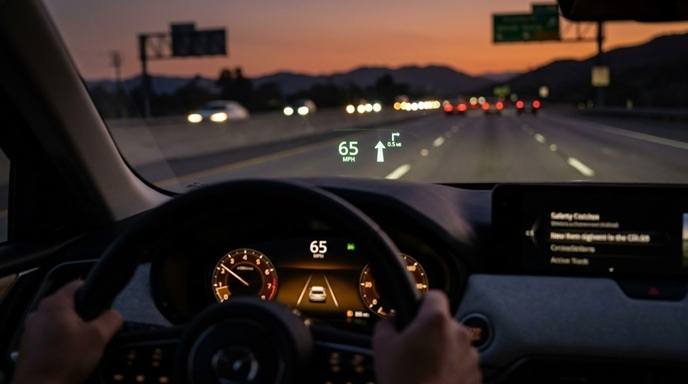
Turning it on is the easy part. Using it well is not. The wrong height makes the image sit in the wrong place. Polarized sunglasses can wash it out. Harsh sunlight can bury it. After some battery service, the saved position can drift. Mazda also says brightness and position should be adjusted only while the vehicle is stopped.
This guide covers the head-up display Mazda CX-90 and CX-90 PHEV models offer: what it shows, how to set it up, which settings matter, why it sometimes looks “broken,” and how to save the setup so you are not starting over every time someone else drives the car.
What Is the Head-Up Display on the Mazda CX-90?
Mazda’s head-up display is the Active Driving Display. The idea is older than the CX-90: put a few high-value pieces of information where you are already looking, so you spend less time staring at the cluster. It is not a second infotainment screen floating on the windshield. It is a limited, driver-facing projection with designated information areas. Mazda’s CX-90 owner documentation describes those areas as covering:
- Front Cross Traffic Alert warning information
- Warning guidance
- Blind Spot Monitoring warning information
- i-ACTIVSENSE information
- Vehicle speed and set-speed information
- Navigation information
That mix is why the system is more useful than a projected speedometer. In ordinary driving it may mostly show speed. With cruise or Mazda’s highway-assistance functions active, set speed and related information can appear. With navigation running on a properly equipped vehicle, guidance can show up without a glance at the center display. When a side or forward cross-traffic warning is relevant, the HUD can add a visual cue in your line of sight.
The cluster still does the heavy lifting. The Active Driving Display is a quick-reference layer, not a replacement for every gauge, hybrid readout, or menu.
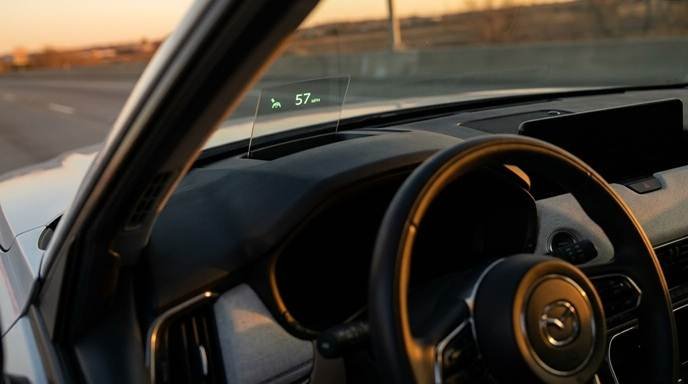
Does Every Mazda CX-90 Have the Same Head-Up Display?
No. Do not assume every CX-90 or CX-90 PHEV has an Active Driving Display, and do not assume every equipped vehicle shows the same information. Mazda’s owner information identifies the Active Driving Display as available on some models. Equipment can change with:
- Model year
- Trim
- Powertrain (including PHEV versus non-PHEV)
- Option packages
- Market
- The specific vehicle’s configuration
That matters if you are shopping. A listing that says “advanced safety” or “premium tech” is not proof. Check the window sticker, the build sheet, VIN-specific equipment, or the owner’s manual for that car. If the HUD is a reason you want the CX-90, verify it before you buy.
Used cars need the same check. A previous owner can turn the display off, change brightness, or leave it aimed for a different seating position. A faint or missing image is not automatically a missing feature.
How the CX-90 Active Driving Display Works
Think of the HUD as a narrow window of information placed in your forward view. You should not stare at it. You should be able to catch it with a small shift of attention while the road stays primary. What you see depends on what is equipped and what is happening.
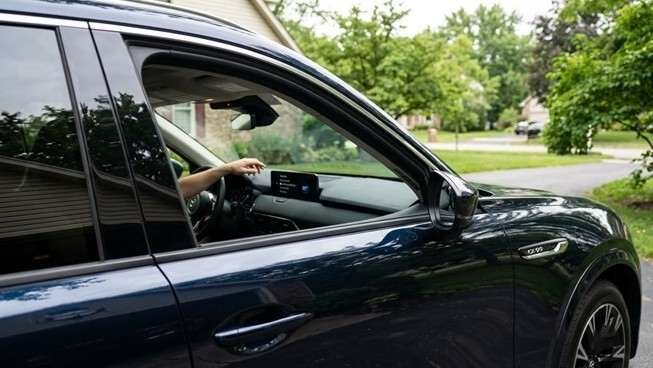
Vehicle speed is the baseline. It is the most common reason people leave the display on.
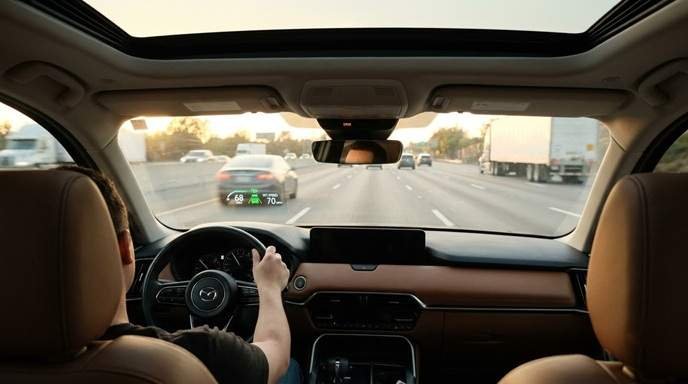
Set speed can appear when compatible cruise-control functions are active. Mazda’s documentation shows set-speed information in the Active Driving Display during cruise-control operation. On a long highway trip, that is the difference between confirming 70 mph in your line of sight and looking down every few minutes.
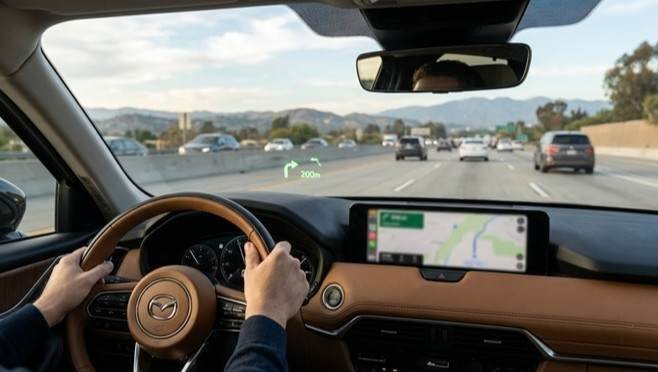
Navigation can appear in the HUD’s navigation area on equipped vehicles. That can be a turn arrow, distance, or similar guidance rather than the full map from the center screen. Do not expect every navigation function to duplicate itself in the HUD.
i-ACTIVSENSE information is Mazda’s umbrella for driver-assistance content. The HUD can carry some of that information so warnings and status are closer to the road.
Safety warnings such as Blind Spot Monitoring and Front Cross Traffic Alert can appear when the systems are operating and conditions are met. They are extra cues, not permission to skip mirrors.
The display is selective on purpose. If it tried to show everything, it would become visual noise. Mazda keeps the cluster for depth and the HUD for glanceable items.
How to Set Up the Mazda CX-90 Head-Up Display
Make position and brightness changes while the vehicle is stopped. Mazda warns that adjusting the display while driving can distract you. That is not legal boilerplate. The control that moves the image is easy to overshoot, and your eyes will follow it.
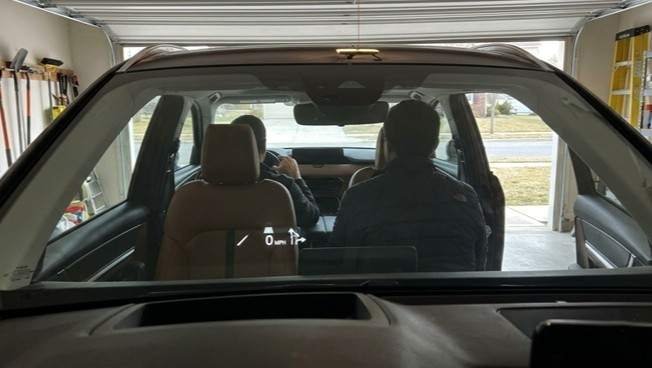
A practical setup order:
- Park the CX-90 safely.
- Set the driver’s seat the way you actually drive.
- Set the steering wheel.
- Set the mirrors.
- Sit in a normal posture. Do not lean forward to “find” the image.
- Open Mazda Connect settings.
- Find Active Driving Display.
- Adjust position.
- Adjust brightness.
- Review which information your vehicle can show.
- Look down the road, not at the hood, and confirm the image sits naturally in view.
Do the seat and wheel first. If you aim the HUD, then raise the seat two inches, you will do the job twice. The display is calibrated to a driver, not to the car in the abstract. If more than one person drives the CX-90, finish this process, then save it in driving-position memory on equipped vehicles. That is covered later. Skip it and you will keep “fixing” a display that was never broken.
How to Adjust the Head-Up Display Position
This is the setting that makes or breaks the feature. A HUD can be working perfectly and still feel wrong because it is too high, too low, or off to one side of your natural gaze. New owners often chase the image by moving the seat. Do the opposite. Lock in a normal driving position, then move the display to you.
Your goal is not to stare through a floating rectangle. The information should sit in the lower portion of your forward view so a brief glance is enough. If you have to tilt your head, you aimed it like a TV. If it sits on the hood edge and disappears when you sit back, it is too low.
Use your real posture:
- Do not lean in.
- Do not raise the seat only to make the HUD easier.
- Do not drop the wheel into an awkward spot.
Then make small position changes and check again looking through the windshield, not at the projection itself. If the image feels like it is competing with the road, lower or dim it. A HUD you ignore because it is in the way is worse than no HUD.
After battery work, come back to this setting. Mazda notes that removing and reinstalling the lead-acid battery, or low lead-acid battery voltage, can cause the adjusted position to deviate. The hardware may be fine. The saved aim may not be.
How to Adjust Head-Up Display Brightness
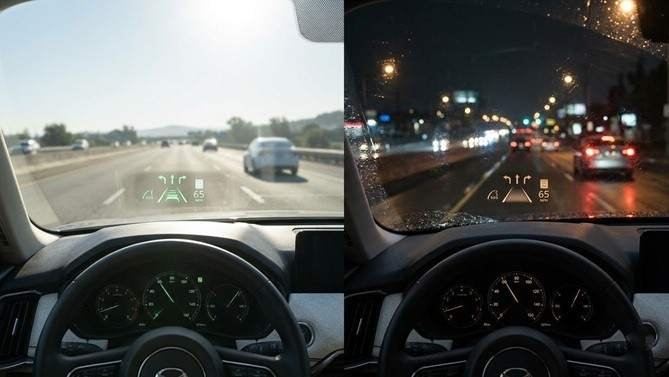
Brightness is the other half of comfort. A setting that looks perfect in a dim garage can be harsh at night. A night setting can disappear in midday sun. Mazda wants those changes made while stopped, which is also the only way to compare the image without dividing attention.
Do not max it out. The point is recognition, not a glowing billboard. If the display feels like a lamp in your lower vision at night, it is too bright. If you cannot find speed without hunting during the day, it may be too dim — or sunlight and sunglasses may be doing the real work.
A useful habit is two checks:
- Daytime, parked, looking down a bright street or lot.
- Nighttime, parked, with headlights on and the cabin dark.
If your CX-90 offers automatic brightness behavior in the settings for your year, try it, then override only if the image still bothers you. The best brightness is the one you stop noticing.
What Information Can the CX-90 HUD Display?
The Active Driving Display is useful because it is selective. These are the categories that matter in daily use.
Vehicle speed
Speed is the HUD’s everyday job. In a school zone, a speed-limit transition, or a downhill where the CX-90 picks up pace, you can confirm speed without dropping into the cluster. That is the feature most owners keep even if they ignore everything else.
Cruise-control set speed
When compatible cruise functions are on, the display can show the set speed. Mazda’s owner information includes examples of set-speed information in the Active Driving Display during cruise-control operation. On a long interstate run, that confirmation belongs in your forward view. You still need to watch traffic. You do not need to keep rechecking the cluster for the number you already set.
Navigation information
The HUD has a navigation area. On a configured vehicle, it can show guidance while your eyes stay closer to the road. It will not replace the map. If a complex interchange needs the full diagram, use the center display or cluster as Mazda designed them. If the HUD shows nothing for navigation, the vehicle may lack the function, the route may not be active, or the information may not be assigned to that display.
Blind Spot Monitoring
BSM warning information is one of the designated Active Driving Display areas in Mazda’s documentation. When the system detects relevant traffic, the HUD can add a visual cue in addition to other warnings. It does not mean the lane is clear. Mirrors and a shoulder check still matter. Treat the HUD as a second chance to notice, not as a green light.
Front Cross Traffic Alert
FCTA can also use the Active Driving Display. Mazda explains that when the system detects an approaching vehicle under its operating conditions, the driver can get a display warning and an audible warning. That helps when you ease forward from a blocked alley, a crowded parking row, or a driveway with poor side sightlines. It does not see around every obstacle, and it does not run in every situation. If you never see FCTA in the HUD, the system may be off, unequipped, or outside its operating conditions. The exact mix on your car is an equipment question. Two CX-90s on the same lot can differ.
Understanding the CX-90 Head-Up Display With Mazda i-ACTIVSENSE
The Active Driving Display earns its keep when i-ACTIVSENSE is working. Instead of burying every status message in the cluster, Mazda can put selected assistance information in your forward view.
Depending on the vehicle, that can include information related to:
- Adaptive cruise / Cruise and Traffic Support operation
- Blind Spot Monitoring
- Front Cross Traffic Alert
- Road Keep Assist
- Other i-ACTIVSENSE functions
- Driver-attention related warnings
- Navigation-related information
On the highway, this is where the HUD stops being a novelty. Mazda’s Cruise and Traffic Support information can show set speed and vehicle-ahead information, and following-distance settings can be represented through the Active Driving Display. You can confirm that the system is set the way you think it is without hunting through menus at 70 mph — which you should not be doing anyway.
Read that last part again. The HUD is for confirmation. It is not a reason to stare at graphics instead of the car ahead. Driver-assistance systems have limits, weather sensitivity, and conditions where they reduce support or drop out. The owner’s manual for your exact CX-90 is the source for those limits.
Understanding Distance Settings With Cruise and Traffic Support
If your CX-90 has the relevant highway assistance, the following-distance setting is one of the most misunderstood pieces of information that can show up around this system.
Mazda documents four distance levels:
- Long
- Medium
- Short
- Extremely short
At 50 mph, Mazda’s manual gives approximate reference distances of about:
- 164 feet for Long
- 131 feet for Medium
- 98 feet for Short
- 82 feet for Extremely Short
Those are reference values, not a guarantee the car will hold exactly that gap in every condition. Mazda notes that following distance changes with speed, and lower speeds produce shorter distances. Traffic, hills, weather, and how other drivers behave all move the result.
For HUD users, the point is practical. If the display or related assistance graphics show a tight following setting, that is the setting you chose, not a defect. “Extremely short” is not a sport mode. It is a closer gap. Many drivers are more comfortable on Long or Medium, especially in rain or at night. Change it while you understand the control, not in a panic because the car feels too close.
The HUD can help you notice the status. It cannot judge whether that gap is appropriate for the road you are on. That is still your job.
How the CX-90 PHEV Head-Up Display Differs
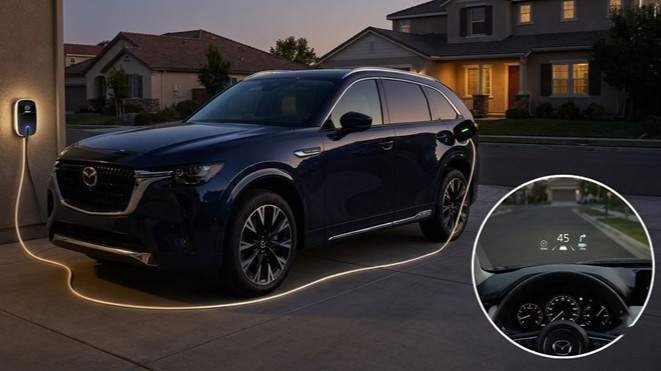
The Active Driving Display concept is the same on the CX-90 PHEV. Speed, set speed, navigation, and assistance warnings still belong in the same idea: selected information, forward view.
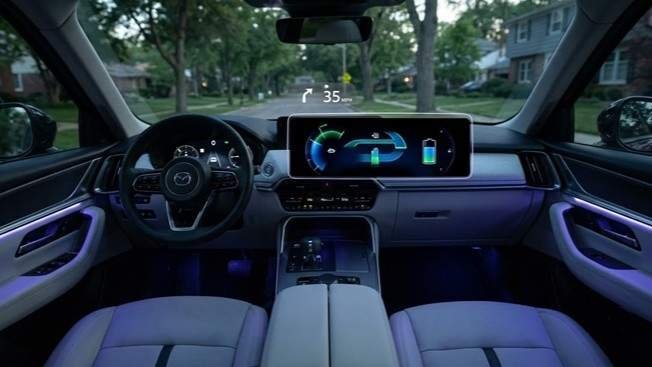
The PHEV difference is everything the HUD is not. Plug-in hybrid driving adds high-voltage battery information, EV/charge/hybrid status, electrical consumption, fuel consumption, and other powertrain detail. That content lives primarily in the instrument cluster and other vehicle displays.
Do not hunt the windshield for a full energy-flow diagram. If you want to know battery state, EV range, or why the engine started, look at the cluster. The HUD is still doing glanceable driving information. The PHEV’s extra complexity did not get stuffed into the projection, and that is a good thing. A hybrid energy screen in your forward view would be a distraction, not a feature.
PHEV owners should set up the HUD like any other CX-90, then learn the cluster’s hybrid pages separately. Confusing the two displays is how people decide the HUD is “missing” information it was never meant to show.
Why Is My Mazda CX-90 Head-Up Display Hard to See?
Most “broken HUD” complaints are visibility, not hardware. Check the simple causes before you schedule a fight with the dealer.
Polarized sunglasses
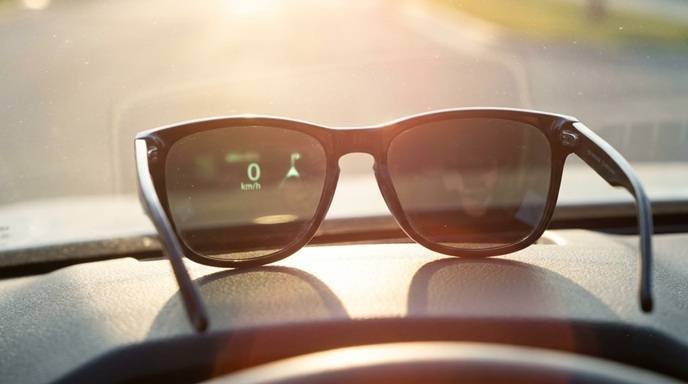
Mazda states that polarized sunglasses can reduce Active Driving Display visibility because of the display’s characteristics. This is the classic trap. The image looks fine in the driveway. You put on polarized lenses on the highway and the HUD nearly vanishes.
Park safely and look without the sunglasses. If the display snaps back into view, the lenses are the variable. That does not mean the system is defective. It means polarized filters and this kind of projection do not always get along. Some drivers keep a non-polarized pair in the car. Others accept that the HUD is a fair-weather companion to their favorite sunglasses.
Bright sunlight
Direct sun, especially low sun ahead of the vehicle, can overpower projected information. Raise brightness while stopped if needed, but also compare the display in shade or at a different time of day. A weak image only in glare is often physics.
Rain, snow, light, and temperature
Mazda notes that weather conditions such as rain, snow, light, and temperature can make the Active Driving Display difficult to view or can affect it temporarily. A wet windshield, low sun through spray, or a cold soak can change how the image looks. If it returns to normal later, you did not necessarily have an electrical failure. Persistent problems in ordinary conditions are different. Then settings, obstruction, or service inspection become the next steps.
Why Did My CX-90 HUD Position Change After Battery Service?
Mazda says that if the lead-acid battery has been removed and reinstalled, or if lead-acid battery voltage is low, the adjusted Active Driving Display position may deviate.
That matches a common ownership story. The car goes in for service. You get it back. Speed is still projected, but it sits higher, lower, or slightly off from the spot you spent twenty minutes getting right. That is not automatically a failed projector.
Reopen Active Driving Display settings, parked, and set position again. If the image is unstable, missing, or still wrong after a careful reset, talk to Mazda service. Bring the symptom and the recent battery work. “It moved after the battery was disconnected” is a more useful sentence than “the HUD is broken.” This is also why saving the position in driving-position memory, on equipped vehicles, is worth doing after you get it right.
Can You Save Your Preferred HUD Settings?
On equipped CX-90s, yes. Mazda’s driving-position memory can include:
- Driver’s seat position
- Active Driving Display position
- Active Driving Display brightness
- Active Driving Display information
- Outside mirror angle
- Steering-wheel position on vehicles with the applicable power adjustment
That is the household feature. Two drivers with different heights should not share one HUD aim. Save each person’s setup and the display comes back with the seat. Without memory, the tall driver raises the seat, the shorter driver drops it, and the HUD is “wrong” every other morning. The system is not haunted. It is aimed at someone else.
How to Program Your CX-90 Driving Position Memory
Mazda’s 2026 CX-90 documentation describes a straightforward sequence. Details can vary by year and equipment, so use the manual in your glovebox if the switches differ. Turn the vehicle power on. Set the driver’s seat, Active Driving Display, outside mirrors, and steering wheel if it has power adjustment. Press and hold the SET switch until you get the confirmation sound. Then, within the specified time, press the memory button you want, or program the position to the vehicle transmitter if that method is available on your car.
Do this after the HUD looks right in a normal driving posture, not after a temporary “let me see if I can find it” slouch. Save junk and the car will faithfully restore junk. If you use key-linked memory, confirm which transmitter belongs to which driver. Otherwise you will keep loading the wrong profile and blaming the display.
What Not to Put Near the Mazda HUD
The Active Driving Display has a dust-proof sheet. Mazda warns against placing objects or stickers on it because they can interfere with the display. Mazda also warns against placing beverages near that area. Liquid can cause damage.
Keep clear of:
- Phone mounts in the projection path
- Dashboard stickers
- Rubber pads stacked on the HUD area
- Large objects on the cowl
- Drinks
- Aggressive cleaners on the dust-proof sheet
A suction-cup mount that looks harmless can sit exactly where the image needs to live. If the HUD looks cropped, doubled, or oddly shadowed, look for an accessory before you look for a software reset.
Clean only as the owner’s manual allows. The sheet is not a second windshield to polish with whatever is under the sink.
Common Mazda CX-90 Head-Up Display Problems
Use this as a first-pass check. It exists to stop the assumption that every annoyance is a failed unit.
| Problem | Possible explanation | What to check |
|---|---|---|
| HUD isn’t visible | Feature off, unequipped, or aimed out of view | Active Driving Display settings and window sticker |
| HUD is too dim | Brightness or glare | Brightness, sunlight, sunglasses |
| HUD is too bright | Nighttime brightness too high | Reduce brightness while parked |
| HUD is too high or low | Position setting | Reposition after setting the seat |
| HUD is faint with sunglasses | Polarized lenses | Test without polarized sunglasses |
| HUD moved after battery service | Position may have deviated | Reset position; see Mazda if it will not hold |
| Hard to see in rain or snow | Weather and windshield conditions | Recheck in normal weather |
| Navigation isn’t displayed | Equipment, route, or configuration | Navigation setup and owner’s manual |
| Warning doesn’t appear | System off or conditions not met | The related i-ACTIVSENSE system |
| Display looks blocked or distorted | Object, sticker, or drink near the sheet | Clear the HUD area |
If none of that explains a blank or abnormal display in good light, with the feature on, and with a known-equipped vehicle, then inspection is reasonable.
Head-Up Display vs. Instrument Cluster
Both. They are not competitors. The HUD is for glanceable, forward-facing items: speed, set speed, a nav cue, a warning you should not miss. The instrument cluster is the detailed center: trip data, more complete assistance status, vehicle messages, and on the PHEV, hybrid and high-voltage battery information.
Drivers who try to make the HUD do everything turn the brightness up, cram the view, and then hate the feature. Drivers who treat it as a speed-and-status glance usually keep it on. If a piece of information is important but dense, it belongs in the cluster. If it is a number you check twenty times an hour, it belongs in the HUD.
Five Settings Every CX-90 Owner Should Check
If the car is new to you, start here.
1. Display position. Set the seat first. Aim the image into a natural forward view.
2. Brightness. Check day and night. Do not leave a garage setting as the highway setting.
3. Display information. See what your specific CX-90 can show. Do not expect a neighbor’s Signature-trim layout.
4. Driving-position memory. Save HUD position, brightness, and information with the seat if the vehicle supports it.
5. Driver-assistance information. Know which warnings your car can put in the HUD. BSM, FCTA, and cruise-related content only appear when those systems exist and are operating.
That fifth item is an equipment audit. Two CX-90 PHEVs can look identical from the sidewalk and not show the same HUD content.
Three Mistakes New CX-90 Owners Should Avoid
Do not adjust the HUD while driving. Mazda warns that changing position or brightness on the move can distract you. Park, then tweak.
Do not assume a faint image means a failed projector. Polarized sunglasses are the usual culprit. Sunlight and weather are next. Battery-related position drift is after that.
Do not skip the owner’s manual for your VIN. The CX-90 is trim- and year-sensitive. A generic YouTube walkthrough can describe a menu you do not have, or skip a warning that applies to your car.
Is the Mazda CX-90 Head-Up Display Worth Using?
For most drivers, yes — if you set it up. The value is convenience, not theater. You can check speed without dropping your eyes. You can confirm a cruise set speed on a long run. You can catch some navigation and assistance cues closer to the road. You can store the aim with your seat memory. None of that changes how the CX-90 steers. Together, it makes the cabin feel less like a cockpit you have to manage.
The feature fails when it is too bright, too high, blocked by a phone mount, or fighting polarized lenses. It succeeds when you forget it is there except in the half-second you need it. That is the design intent. Useful information, closer to your natural forward view, with less time spent looking away from the road.
The head-up display Mazda CX-90 and CX-90 PHEV models offer is easy to underestimate until the position and brightness match the way you sit. Mazda’s Active Driving Display is not just a projected speedometer. On compatible vehicles it can show speed, set speed, navigation information, i-ACTIVSENSE information, Blind Spot Monitoring warnings, Front Cross Traffic Alert warnings, and other guidance.
Set the seat first. Aim the display while parked. Dim it until it is readable, not loud. Review what your trim can show. Save the setup in driving-position memory if you have it. If the image goes faint, check sunglasses, sun, weather, and a recent battery disconnect before you assume the unit died.
On the CX-90 PHEV, keep hybrid detail in the cluster. Let the HUD do the glanceable work. The best setting is not the brightest one or the one with the most graphics. It is the one that gives you the information you need without making you think about the display. That is when the Active Driving Display is doing its job. Before you change a safety-related setting, use the owner’s manual for your exact CX-90 or CX-90 PHEV. Mazda’s equipment and functions vary by model, trim, and configuration.
Related Post